DisplaySwitcher Review - Paste on One Computer, Grab It on the Other
We've tested DisplaySwitcher, a desktop app for Mac, Windows and Linux that switches your monitor's input from a button and moves text and files between your computers with no network setup.
If you work with two computers on one desk, you know the little rituals. You reach behind the monitor and dig through its menu to change the input. You email yourself a link because the Windows laptop and the Mac don't share a clipboard. You look for a USB stick to move a file thirty centimeters to the left.
DisplaySwitcher, built by Boyd Edmondson at Nebula Software, goes after both rituals with one desktop app for Linux, macOS and Windows. Boyd asked me to look at four things: switching a monitor's video input with a software button, moving text and files between computers (including across operating systems), doing all of that without any network or firewall setup, and letting another connected computer flip the monitor when one machine can't do it directly. He also asked for a review of the installed app rather than of the website, so that's what this is: I installed it on two MacBook Pros and used it.
One thing to say upfront. My desk doesn't have a monitor with two video inputs (my Studio Display and my second monitor each have a single one), so I couldn't physically set up monitor switching. That's a limit of my hardware, not something I saw DisplaySwitcher fail at, so this review focuses on Computer Transfers.
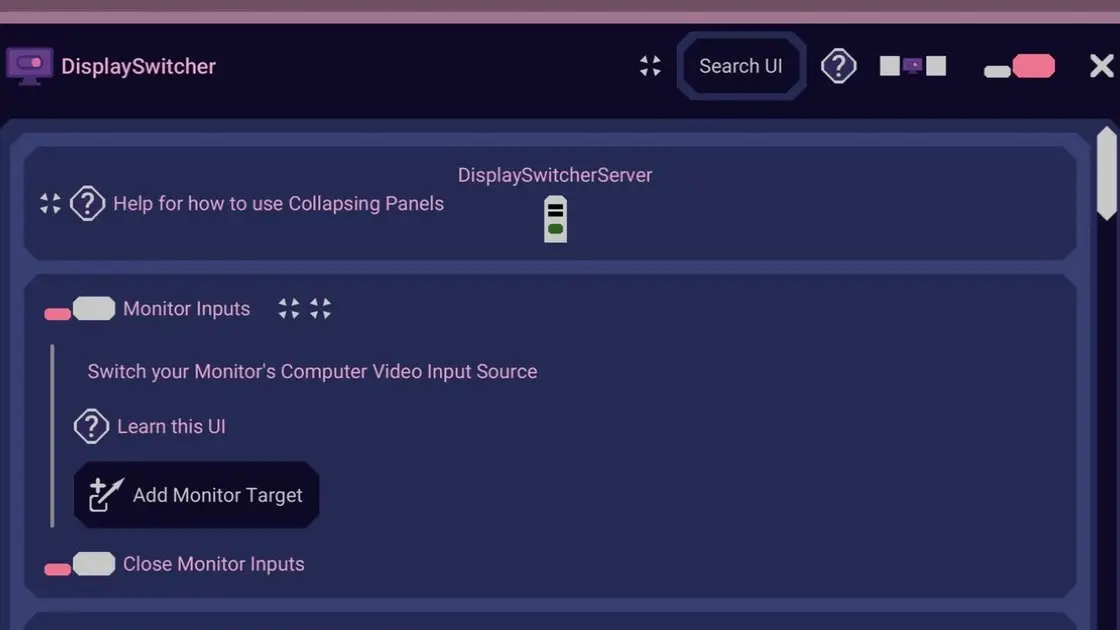
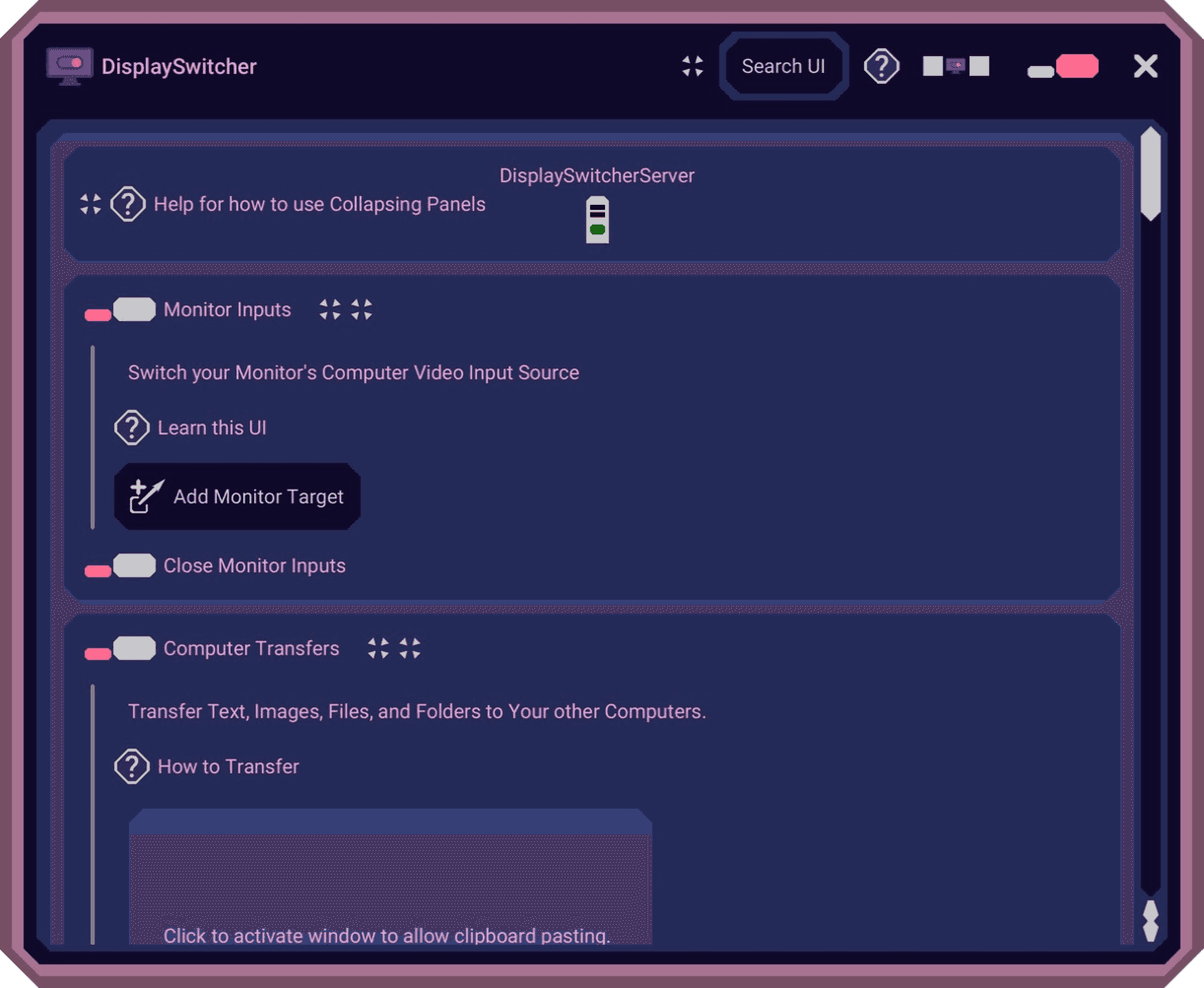
DisplaySwitcher's main window: the DisplaySwitcherServer status light at the top, then the Monitor Inputs and Computer Transfers panels.
On a Mac, DisplaySwitcher runs on Apple Silicon only, and the documentation says so clearly. You download an installer from the docs, open it, type your administrator password, and the app lands in its own DisplaySwitcher folder in Applications, next to an uninstaller. It also sets itself to start when you log in, which you can turn off. On launch, the window showed up in about 1.8 seconds according to the app's own log.
There's no account to create inside the app. On first launch it asks for a license, and you get one by starting the one-month free trial through the subscription checkout on the Nebula Software website. Once that's done, the app activates on your machine and connects to its server on its own.
I should be honest about how my setup went, because it wasn't smooth. Boyd told me I was the very first customer to go through his purchase flow, and it showed. The checkout only accepted US addresses at first. On my M5 MacBook Pro, the app quit silently on its first launch because the installer had created its data folder with the wrong owner. On my older M1, the installer wouldn't open at all. The good news is how each of these ended: Boyd opened the checkout to other countries within hours, rebuilt the installer several times over a few days, and the latest build installed and ran fine on the M1. Anyone downloading it now gets those fixes. The app also updates itself: during my test it installed two updates on its own and relaunched.
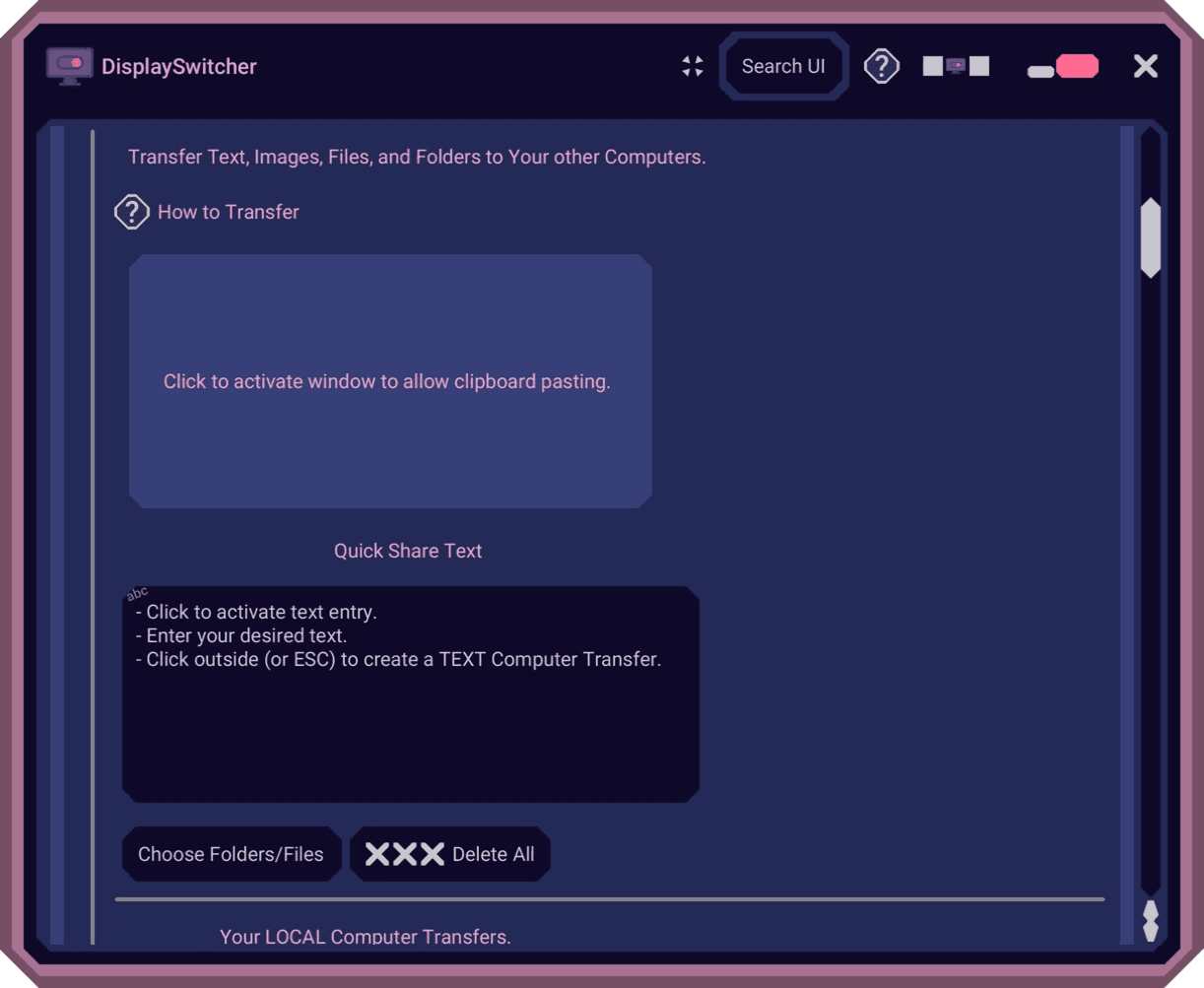
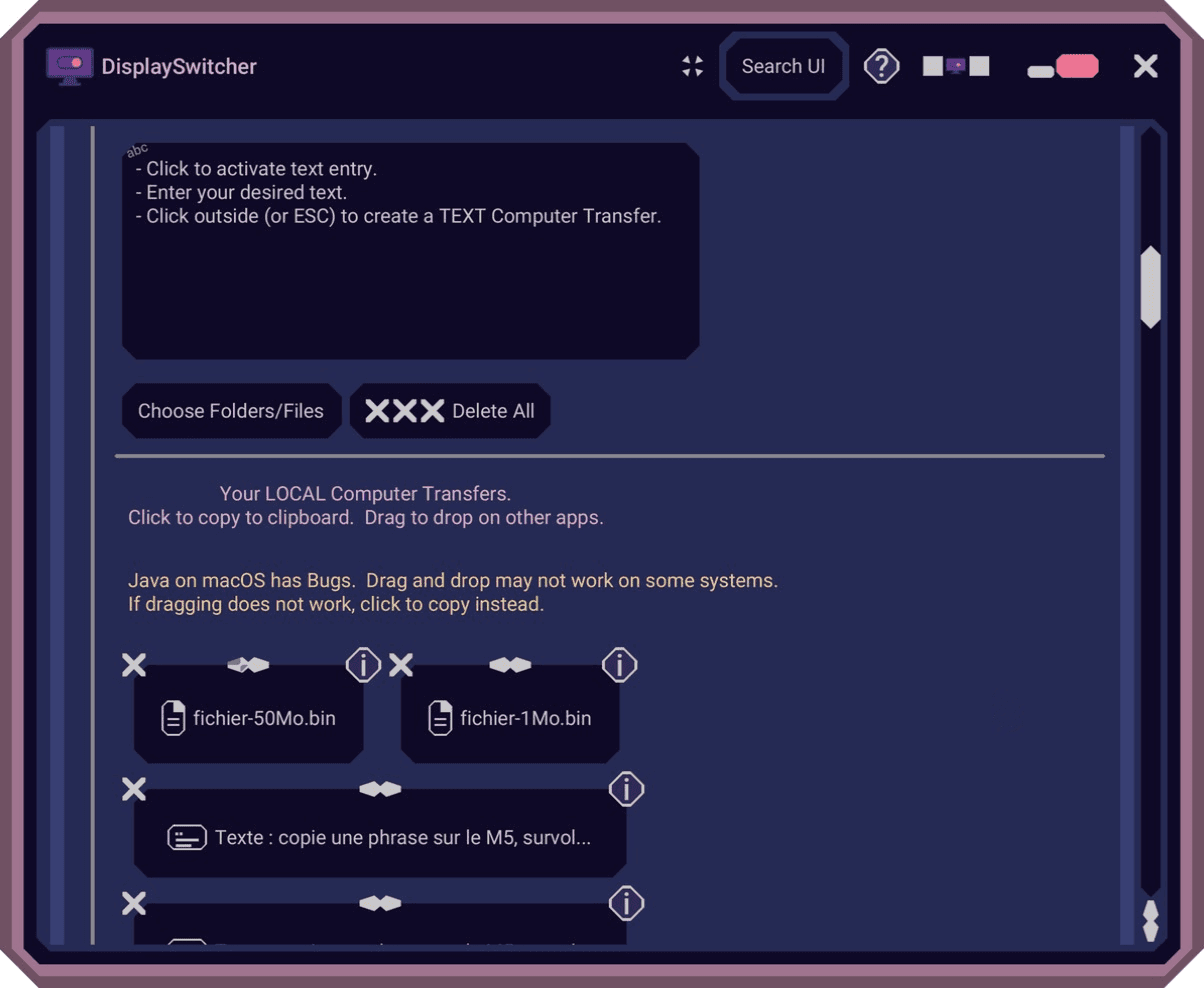
This is the part of DisplaySwitcher I spent the most time with. The Computer Transfers panel says what it does in one line: "Transfer Text, Images, Files, and Folders to Your other Computers." Below that sits a large light blue area. You hover it and press Cmd+V (or right-click), or you drag something onto it: text, an image, files or folders.
Under it, a Quick Share Text box works like a shared note. You click it, type, and click outside (or press Esc), and that text becomes a transfer. A Choose Folders/Files button opens a file picker if you'd rather browse, and Delete All clears everything.
The Computer Transfers panel: the paste and drop area, the Quick Share Text box, and the Choose Folders/Files button.
The "no network setup" promise holds up, and it's easy to see why. You don't pair the two machines, type an IP address or open a port. Each copy of DisplaySwitcher connects to Nebula Software's own server, and the server passes your transfers along to your other computers on the same license. Once my second Mac was running, the app's log simply reported "DisplaySwitcherServer reported 1 other connected computer(s)." Boyd also told me he set up a server in Paris during my test so transfers would be faster for people in Europe.
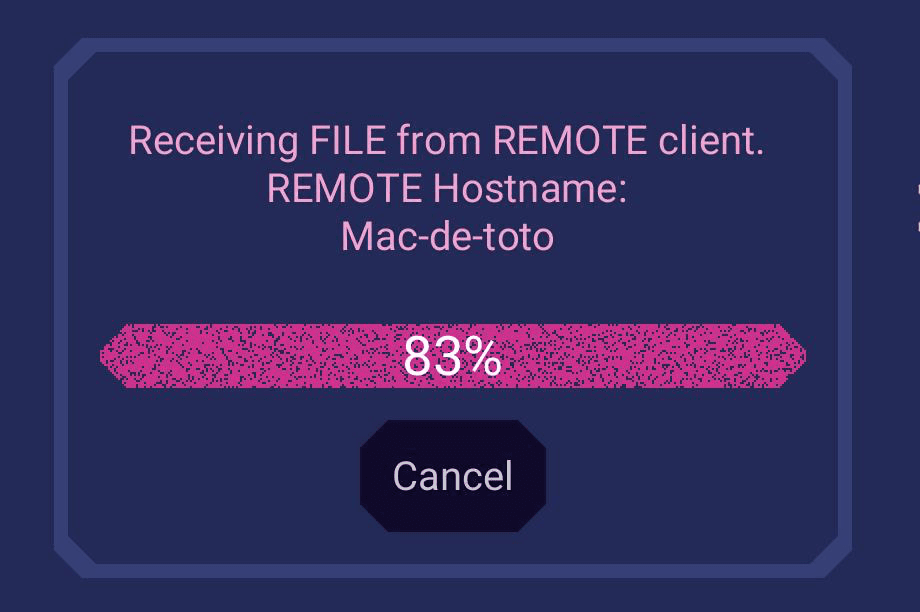
In practice, it's fast. Text I pasted on my M5 appeared on the M1 in under a second, and the 1 MB and 50 MB test files felt just as quick. While a file comes in, the receiving Mac shows a small window with the sending computer's name and a progress bar.
On the M1, a file arriving from my M5 (named Mac-de-toto) at 83%, with a Cancel button.
Everything you send or receive lands in a list titled "Your LOCAL Computer Transfers. Click to copy to clipboard. Drag to drop on other apps." Both worked for me: clicking an item and pasting it elsewhere, and dragging it onto the desktop. Each item has a delete cross and an info button. Right above the list, a yellow note reads "Java on macOS has Bugs. Drag and drop may not work on some systems. If dragging does not work, click to copy instead." I like that kind of honesty, even if it's a little odd to see inside an app.
The list of local transfers, with my two test files, a few text snippets, and the note about drag and drop on macOS.
One thing caught me out. Transfers only go to computers that are connected at that moment. My first three pastes happened before the M1 had joined, and the app logged them as complete with no remote computer to send them to, so they stayed on the M5. Check that the other machine is online before you paste.
I tested Mac to Mac, mostly from my M5 to my M1, so I can't speak to transfers with Windows or Linux, which is a big part of Boyd's pitch. And since transfers go through Nebula Software's servers rather than your local network, your files pass through a third party. The connection uses HTTPS, but I couldn't check whether the content itself is end-to-end encrypted, so that's worth asking about before you send anything sensitive.
I couldn't test the switching itself, but I did go through the setup. Clicking Add Monitor Target opens a "Create a Monitor Input Shortcut" window that walks you through four choices: the computer that talks to the monitor ("Local or Remote"), the monitor, the video input source, and a name for the shortcut (it suggests your target computer's name). You then pick an image for the button, from built-in computer icons or one you upload.
The input list offers 17 standard names, from HDMI 1 and 2 to DisplayPort, DVI, VGA and a few legacy ones, so you pick the one that matches where your other computer is plugged in. That "Local or Remote" choice is where the fourth feature Boyd mentioned lives: a shortcut can ask another connected computer to send the switch command when the one you're on can't. According to the docs, the monitor has to support DDC/CI, and HDMI can be unreliable on Apple Silicon Macs, so DisplayPort or USB-C is the safer connection.
DisplaySwitcher doesn't look like any other app on your Mac, and that's on purpose. Boyd explained that he wrote his own interface toolkit from scratch rather than using Java's standard one, which gives the app its windows with clipped corners, collapsible panels, a "Search UI" button and an animated progress bar. Almost every section has a question mark button ("Learn this UI", "How to Transfer") that points to help.
I'll be blunt about how it felt: on my Macs, the interface was slow and choppy, and I sometimes had trouble finding what to click. It doesn't behave like a native Mac app, and macOS's accessibility tools couldn't see any of its buttons during my test, which matters if you rely on a screen reader. Boyd also mentions built-in help documents and videos, plus a recorder that lets you send support a video of a bug. I didn't try those.
You start the trial through the checkout on the website and cancel from your account page, with no need to contact anyone. One license ran on both of my Macs.
If your computers are all Apple, AirDrop and Universal Clipboard already cover a lot of this for free. LocalSend is the usual free, open-source pick for sending files across platforms, but it works peer to peer on your local network. On the monitor side, Mac utilities like Lunar or BetterDisplay can also send DDC commands to a monitor. DisplaySwitcher's angle is putting both jobs in one app for Mac, Windows and Linux, with transfers that need no network setup on either machine.
Keep a Mac and a Windows or Linux machine on the same desk and want a shared paste and drop zone between them.
Already have a monitor with several inputs, connected to more than one computer, and are tired of its menu buttons.
Want something cheap that works without touching your network settings.
It's less of a fit if all your devices are Apple (AirDrop does most of this), if you'd rather keep files on your local network, or if a native-feeling interface matters a lot to you.
That's the end of this DisplaySwitcher review. The transfers are the real draw: you install the app on two computers, and from then on anything you paste or drop on one shows up on the other within a second, without touching your network settings. The interface needs work, and my launch week was bumpy, but I also watched a solo developer fix every issue I reported, sometimes the same afternoon.
What I liked:
Text and files appeared on my other Mac in under a second.
Nothing to configure: no pairing, no IP address, no firewall rule.
Several ways to send things: paste, drag and drop, file picker, Quick Share Text.
A very responsive founder, who even added a server in Europe during my test.
A low price, with a one-month free trial.
Things to keep in mind:
The custom interface felt slow and choppy on my Macs.
Your transfers go through Nebula Software's servers.
I couldn't test monitor switching (my hardware) or transfers with Windows and Linux.
If you juggle two computers on one desk, DisplaySwitcher is worth a month of free trial.
Asin Review - An Amazon Price Tracker You Pay Per Check
We've tested Asin, an Amazon price tracker that checks products on 11 Amazon stores, keeps every price it reads, and emails you on drops, target prices and restocks, with a REST API and an MCP server on top.
Reviews
Phare Review - The European Alternative for Uptime Monitoring and Status Pages
We've tested Phare, a Better Stack alternative for uptime monitoring, incident management and status pages, built and hosted entirely in the EU.
Reviews
Orka Review - Live Chat for SaaS Founders Running Several Products
We've tested Orka, a live chat for SaaS founders that puts every product you run in one support inbox, with an AI that runs on your own API key.
Reviews
Talanoa Review - A Local Email Client That Reads Like a Chat
We've tested Talanoa, a local email client for macOS, Windows and Linux that groups your mail by person, shows threads as chat bubbles, and runs its AI on your own computer.
We use cookies
Essential and analytics cookies keep Uneed running and help us understand usage, and a referral cookie credits the partner who sent you. Marketing cookies are optional. Privacy policy